
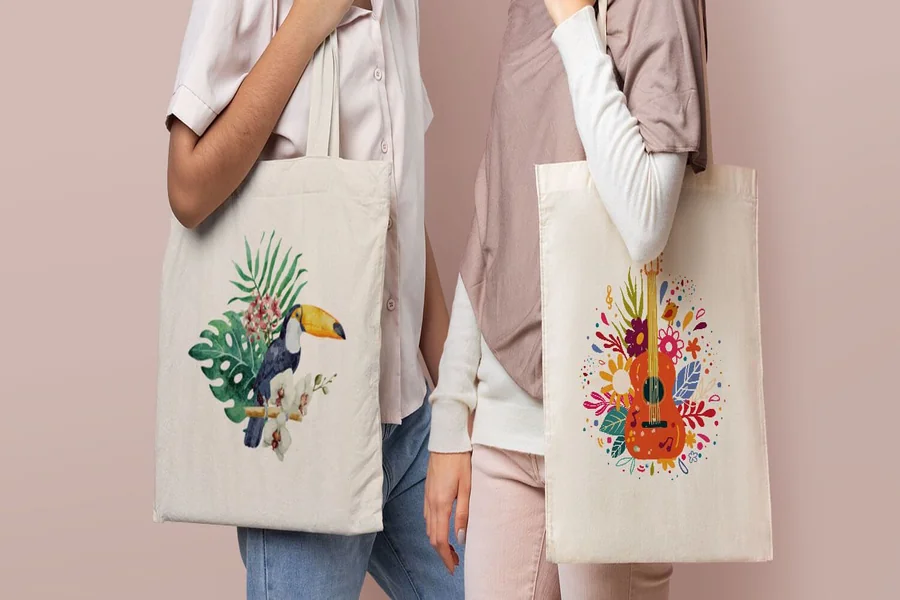
A clear, step-by-step tutorial for beginners who want to create print-ready tote bag designs without prior design training.
Introduction
Custom tote bags remain a practical and versatile format for brand visibility, events, retail merchandise, and internal team initiatives. Unlike digital graphics, however, fabric printing introduces constraints: fixed print areas, color limitations, and scaling considerations that can quickly overwhelm beginners.
Today’s custom tote bag makers reduce that friction. Instead of starting with complex professional software, users can work within pre-sized layouts, guided formatting systems, and structured export workflows designed specifically for print applications.
One accessible starting point is to design a tote bag using Adobe Express, which provides template-based layouts tailored to print dimensions and beginner-friendly editing controls. Tools in this category help translate a concept into a print-ready file without requiring advanced design experience.
The guide below walks through a structured workflow for using a Custom Tote Bag Maker effectively — focusing on decisions, checkpoints, and practical safeguards rather than design theory.
Step-by-Step How-To Guide for Using Custom Tote Bag Maker
Step 1: Set Up a Print-Ready Canvas
Goal
Begin with correct dimensions and layout constraints to avoid rework later.
How to do it
- Open a tote-specific template in your chosen Custom Tote Bag Maker
- Confirm the printable area (e.g., 12” x 14” or vendor-specific size)
- Select orientation (portrait is most common)
- Enable margin or safe-area guides if available
- Duplicate the blank template before editing to preserve a clean version
What to watch for
- Designing at web resolution instead of print size
- Ignoring seam and trim boundaries
- Scaling artwork after layout is complete
Tool notes
You can verify exact tote dimensions and bleed requirements using Printful, which publishes detailed print area specs for tote products. Always confirm vendor sizing before finalizing your canvas.
Step 2: Clarify the Core Message
Goal
Define one clear objective for the tote design.
How to do it
- Write a single-sentence purpose (promotion, event, gift, internal branding)
- Identify the primary audience
- Choose one focal element (logo, slogan, illustration)
- Decide whether tone is minimal, bold, or playful
What to watch for
- Multiple competing messages
- Long paragraphs of text
- Messaging that requires explanation to understand
Tool notes
For refining short taglines or tightening copy before placing it into your tote layout, lightweight writing tools like Grammarly can help simplify phrasing and improve clarity without altering your brand voice.
Step 3: Choose Fabric-Friendly Fonts and Colors
Goal
Ensure the design remains legible once printed on textured canvas.
How to do it
- Select bold, readable fonts
- Use high-contrast color combinations
- Limit palette to two or three primary colors
- Test readability at 100% zoom
What to watch for
- Thin script fonts that disappear on fabric
- Low-contrast pairings (light gray on beige, etc.)
- Highly saturated hues that shift during print
Tool notes
To confirm color contrast and accessibility before export, tools like WebAIM Contrast Checker help test legibility between text and background colors, which is especially useful for event totes viewed at a distance.
Step 4: Add Logos or Graphics Carefully
Goal
Incorporate imagery without sacrificing clarity or resolution.
How to do it
- Upload vector files (SVG preferred) when possible
- Keep proportions locked when resizing
- Center designs visually, not just mathematically
- Leave sufficient margin around logos
What to watch for
- Low-resolution JPG logos
- Stretching graphics horizontally or vertically
- Placing key details too close to seams
Tool notes
If you need to convert raster logos to scalable formats, utilities such as Vectorizer.ai can help transform images into cleaner vector-based files before uploading them into your Custom Tote Bag Maker.
Step 5: Validate Layout and Spacing
Goal
Prevent cropping, imbalance, or visual misalignment.
How to do it
- Keep text at least 0.5 inches from trim lines
- Preview the design against a tote mock background
- Check spacing between lines and elements
- Compare centered vs slightly elevated placements
What to watch for
- Designs sitting too low on the bag
- Uneven margins caused by optical illusion
- Crowded layouts that feel compressed
Tool notes
Project management tools like Asana can help track proof reviews and approval checkpoints if you’re coordinating tote production with multiple stakeholders.
Step 6: Export in the Correct Format
Goal
Produce a file optimized for fabric printing.
How to do it
- Export as high-resolution PDF or PNG
- Confirm required color mode (ask vendor if unsure)
- Avoid compressed or web-optimized exports
- Name files clearly for version tracking
What to watch for
- Exporting at low DPI
- Flattening text improperly
- Sending RGB files when CMYK is required
Tool notes
For sharing proofs internally before final submission, platforms like Dropbox allow version-controlled file sharing and feedback tracking.
Step 7: Coordinate Production and Distribution
Goal
Move from design to physical delivery smoothly.
How to do it
- Approve a digital proof
- Confirm turnaround time
- Verify shipping destination and deadlines
- Track quantities upon arrival
What to watch for
- Skipping proof review
- Overlooking shipping cutoffs
- Ordering incorrect quantities
Tool notes
If shipping tote bags to multiple locations, fulfillment tools such as ShipStation can streamline label generation and distribution logistics.
Common Workflow Variations
Photo-Based Tote
Prioritize high-resolution imagery and reduce text overlays to maintain clarity.
Logo-Forward Business Tote
Center the logo prominently with minimal supporting text.
Event Giveaway Tote
Emphasize bold typography and date/location visibility.
Limited Edition Gift Tote
Allow more expressive design elements while maintaining legibility.
Checklists
Before You Start Checklist
- ☐ Confirm tote printable dimensions
- ☐ Gather high-resolution artwork
- ☐ Define primary message and audience
- ☐ Confirm print method (screen vs digital)
- ☐ Review color and contrast
- ☐ Set production deadline
- ☐ Clarify export requirements
- ☐ Determine final quantity
Pre-Export / Pre-Order Checklist
- ☐ Text readable at full scale
- ☐ Graphics high resolution
- ☐ Colors high contrast
- ☐ Safe margins respected
- ☐ Spelling and punctuation checked
- ☐ Correct file format selected
- ☐ File naming consistent
- ☐ Proof reviewed before ordering
Common Issues and Fixes
Blurry Artwork
Fix: Replace low-resolution images with vector or 300 DPI files.
Unexpected Color Shift
Fix: Request proof and slightly darken lighter shades.
Cropping at Edges
Fix: Expand background or re-center elements within safe area.
Design Feels Off-Center
Fix: Adjust visually rather than relying solely on grid alignment.
Overcrowded Layout
Fix: Increase whitespace or reduce supporting text.
How To Use Custom Tote Bag Maker: FAQs
Do I need design experience?
No. Template-based workflows are structured to guide non-designers through sizing, alignment, and export decisions.
Should I design first or choose the tote type first?
Confirm printable dimensions first, then adapt design accordingly.
Is print export different from social media export?
Yes. Print requires higher resolution and different color handling.
How many colors should beginners use?
Two to three colors generally maintain clarity and reduce print variability.
